How to Install Node-RED Modules Offline
In many industrial environments, internet access is restricted or completely unavailable. This makes installing additional Node-RED modules directly from npm impossible.
Fortunately, Node-RED supports installing modules manually using npm package archives (.tgz files). This guide explains how to prepare those packages on a machine with internet access and install them on an offline Node-RED instance.
When Should You Use Offline Installation?
Offline installation is useful when:
- The Node-RED server has no internet connection.
- Your company blocks access to the npm registry.
- The production environment is air-gapped.
- You need to deploy the same approved package across multiple machines.
Step 1 — Find the Package
First, determine the npm package you want to install.
If you don't know the package name, you can search for it on:
- The Node-RED Flow Library
- npm
- GitHub
- ChatGPT
For example:
node-red-dashboardor
node-red-contrib-modbusStep 2 — Retrieve the Package Information
On a computer with internet access, open a terminal and run:
npm view <package-name>For example:
npm view node-red-dashboardThis command displays useful information about the package, including:
- Current version
- Dependencies
- Repository
- Homepage
- Tarball download URL
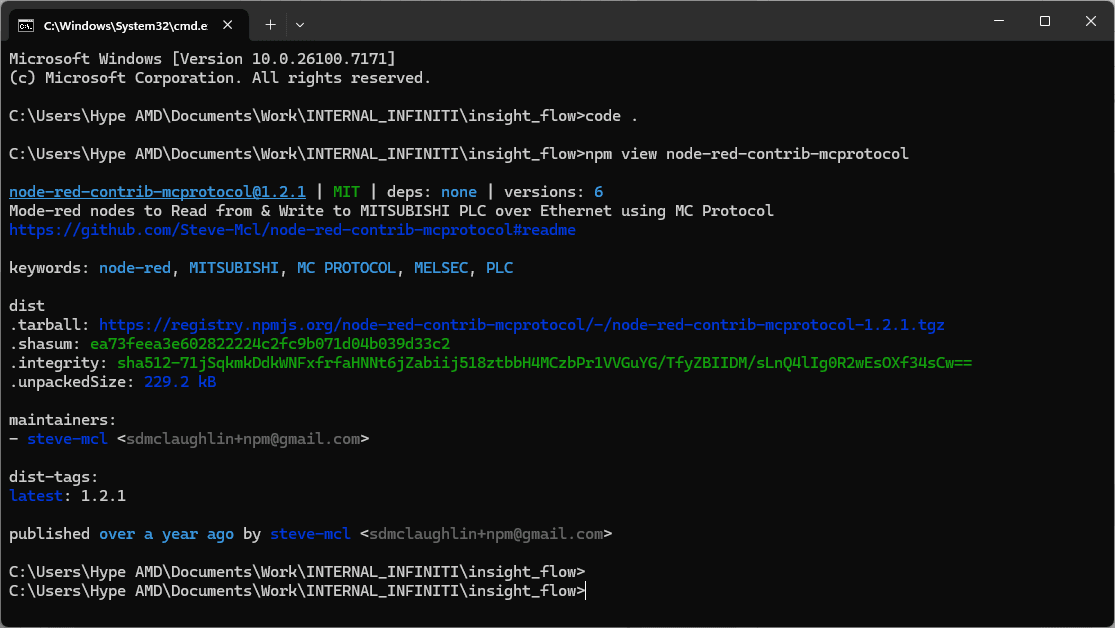
Look for the dist.tarball field. It contains the URL of the package archive (.tgz) that you'll need to download.
Step 3 — Download the Package
Download the .tgz file from the URL shown in the dist.tarball section.
For example:
node-red-dashboard-3.6.5.tgzCopy the downloaded file to your offline machine using:
- USB drive
- Shared folder
- Internal server
- Local network
Note: Some packages depend on additional npm packages. If they are not already installed, you'll need to download those dependencies as well.
Step 4 — Import the Module into Node-RED
Open your Node-RED editor.
Navigate to:
Menu
    ↓
Manage Palette
    ↓
Install
Choose Install from File, then select the downloaded .tgz package.
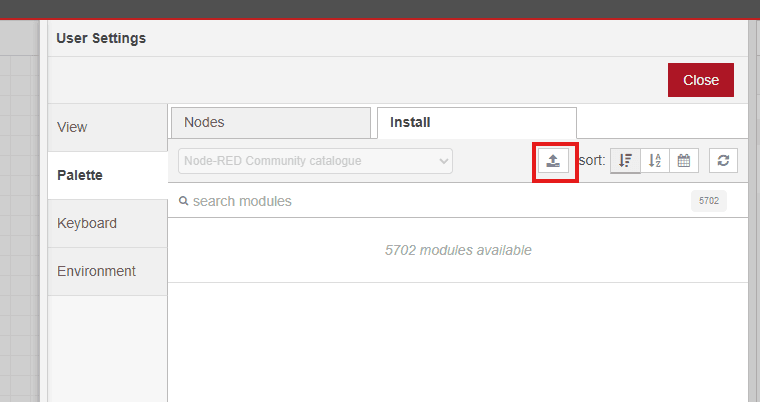
After the installation completes, the new nodes will automatically appear in the Node-RED palette.
Alternative: Install Using npm
If you have terminal access to the Node-RED installation, you can also install directly from the downloaded archive.
npm install ./node-red-dashboard-3.6.5.tgzor
npm install /path/to/package.tgzRestart Node-RED after the installation finishes.
Common Issues
Missing Dependencies
Some Node-RED modules require additional npm packages.
If the installation fails because of missing dependencies, download the required dependency packages and install them first.
Version Compatibility
Always verify that the downloaded package supports your installed versions of:
- Node.js
- Node-RED
Installing an incompatible version may cause startup errors or missing nodes.
Restart Node-RED
If the module doesn't appear immediately after installation, restart the Node-RED service.
node-red-stop
node-red-start
or restart the service using your operating system's service manager.
Best Practices
- Keep a local repository of approved
.tgzpackages for production deployments. - Record the package versions installed on each Node-RED instance.
- Test new modules in a development environment before deploying them to production.
- Download packages only from trusted sources such as the official npm registry.
Key Takeaways
- Node-RED modules can be installed without internet access.
- Use
npm view <package-name>to locate the package's.tgzarchive. - Download the archive on a machine with internet access.
- Transfer the file to the offline machine.
- Install it through Manage Palette or using
npm install. - Maintain a local package repository to simplify future deployments.
References
- Node-RED Documentation — Managing the Palette
- npm Documentation —
npm view - npm Documentation — Package Distribution (
.tgzTarballs)